Your cart is currently empty!
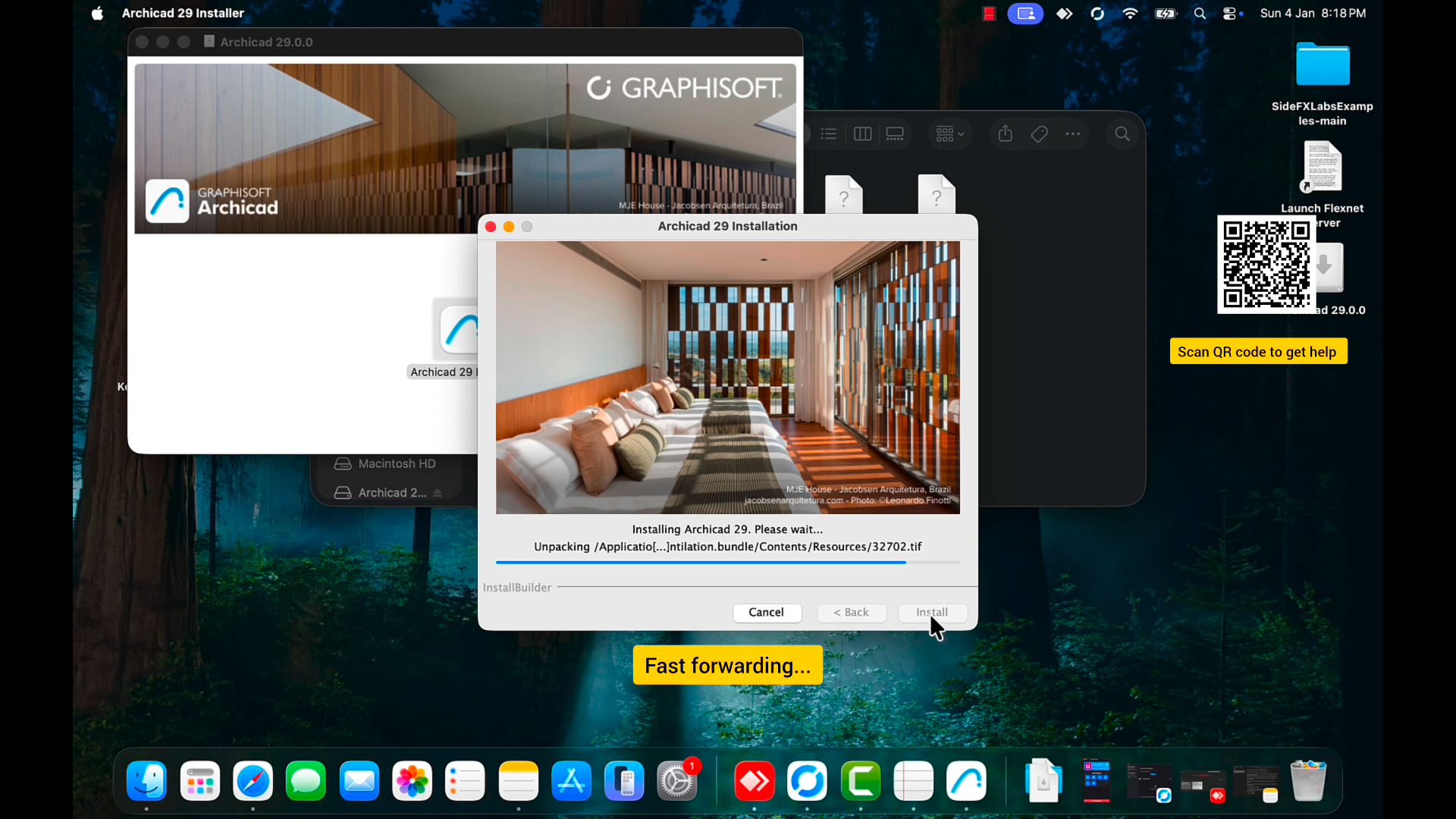
If you’re looking for a clear and reliable guide on how to install Archicad 29 on macOS, this tutorial will walk you through the entire process step-by-step. This method works on both Intel-based Macs and Apple Silicon systems — including M1, M2, M3, M4 and M5 chips.
Whether you’re upgrading from a previous version or installing Archicad for the first time, this guide will help you set it up smoothly and avoid common installation issues.
📌 Tip: The process is very similar for earlier versions such as Archicad 28, 27 and 26, so you can also use this guide for those.*
System Compatibility — Does Archicad 29 Work on macOS?
Yes — Archicad 29 fully supports macOS on both Intel and Apple Silicon devices.
Supported Devices
- ✔ MacBook Air — M1 / M2 / M3 / M4 / M5
- ✔ MacBook Pro — Intel & M-Series
- ✔ iMac — Intel & Apple Silicon
- ✔ Mac Mini — M1 / M2 / later
- ✔ Mac Studio / Mac Pro
Supported macOS Versions
- ✔ macOS Ventura
- ✔ macOS Sonoma
- ✔ Latest system updates recommended
Before You Start — Preparation Checklist
Make sure:
- ✔ Your Mac has enough free storage
- ✔ Your internet connection is stable
- ✔ You close unnecessary apps
- ✔ You have your admin password ready
This helps prevent installation errors.
Step-by-Step: How to Install Archicad 29 on macOS
Step 1 — Download the Archicad 29 Installer
Download the official Archicad installer for macOS from Graphisoft or your licensed provider.
The file will usually be located in your Downloads folder.
Step 2 — Open the Installer
Double-click the installer file to open it.
If macOS shows a permission window, click Allow / Continue.
When the setup window appears, click Continue.
Step 3 — Accept the License Agreement
Read the agreement and select Agree to continue.
Step 4 — Choose the Installation Location
The default location is recommended for most users.
Click Install and enter your macOS password when prompted.
Step 5 — Installation Progress
Archicad will now install application files, libraries and support tools.
Avoid closing the installer until the process completes.
When finished — click Close.
First Launch of Archicad 29 on macOS
Open:
Applications → Graphisoft → Archicad 29
The first launch may take slightly longer than usual — this is normal.
Once loaded, the main Archicad interface will appear.
Language Versions of Archicad
Archicad is available in multiple regional language builds.
If you prefer another language, install the corresponding language version — the installation process is the same.
Activation — Important Section
Activation is one of the most important steps.
Follow the on-screen instructions to sign in and activate your license carefully.
If something doesn’t work as expected, don’t worry — support is available.
You can also contact me for installation assistance.
Testing — Confirm Archicad is Working
Open a few sample projects and test:
✔ Toolbars
✔ Project loading
✔ 2D & 3D navigation
✔ Performance & stability
If everything runs smoothly — your installation is complete.
Need Help Installing Archicad?
If you face issues such as:
⚠ Installation errors
⚠ Activation problems
⚠ Crashes or loading failures
⚠ macOS compatibility issues
You can contact me here:
👉 https://quicktechguru.com/contact/
I have extensive experience installing and configuring software on macOS — including Intel & Apple Silicon systems — and I’m happy to help.
Works Best For
- ✔ Architects
- ✔ Students
- ✔ Engineers
- ✔ Designers
- ✔ BIM professionals
- ✔ Beginners & advanced users
Frequently Asked Questions
Does Archicad 29 support Apple Silicon (M1/M2/M3/M4/M5)?
Yes — Archicad 29 runs natively on Apple Silicon processors.
Does Archicad 29 work on macOS Tahoe?
Yes — Archicad supports current macOS versions.
Is the installation process difficult?
No — simply follow the steps in this guide and video.
Can I install older versions such as Archicad 28 or 27?
Yes — the process is very similar.
Conclusion
Installing Archicad 29 on macOS is simple when you follow the steps carefully. This guide helps you complete the process smoothly on both Intel and Apple Silicon Macs.
If you need help at any stage, feel free to reach out:
👉 https://quicktechguru.com/contact/
Thanks for reading — and enjoy working with Archicad!
Hello,
We,re Pro IT Solutions

Welcome to Pro IT Solutions.
Let’s connect
Join the fun!
Stay updated with our latest tutorials and ideas by Subscribing our YouTube Channel.
Leave a Reply